Explore LHP Web
You’ve read the sample project’s YAML and generated its code from the terminal.
Lakehouse Plumber also ships a local web IDE that shows the same project
visually — the whole pipeline as a graph, each action as a form, and
validate / generate running live in your browser. It’s optional, but it’s
the fastest way to see what you just built.
Launch it
The web IDE is an optional extra. Install it and launch from inside the sample project:
pip install "lakehouse-plumber[webapp]"
lhp web
lhp web serves a browser workbench for this one project on 127.0.0.1 and
opens your browser on a per-session URL. It reads the same pipelines/,
substitutions/, and lhp.yaml you toured earlier — nothing new to
configure.
See the whole project as a graph
The project map shows every pipeline as a dependency graph. For the sample, that’s the medallion flow you generated — ingest feeding silver feeding gold — laid out end to end, with run history below and validation on the right.
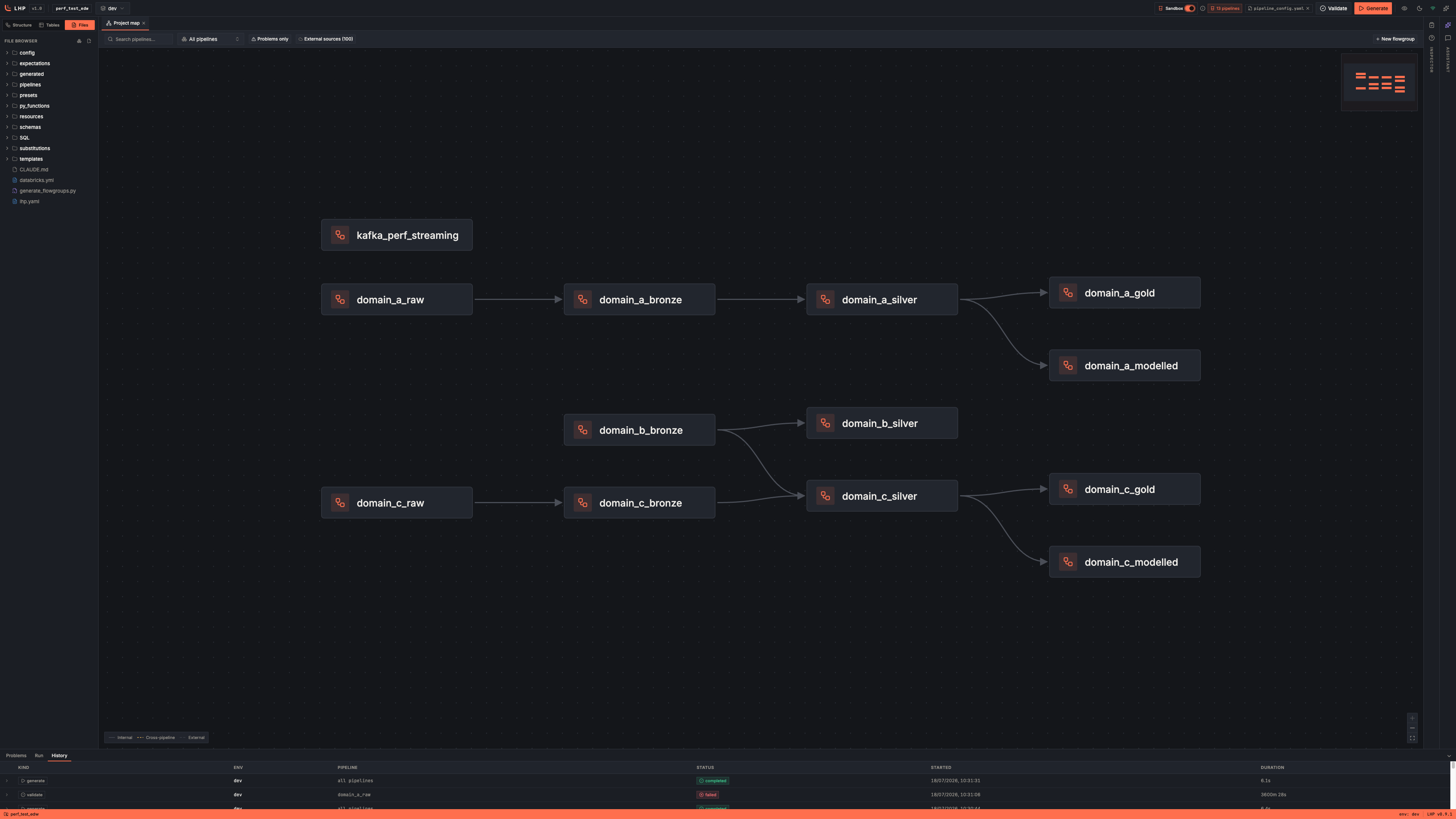
The project map: your pipelines as one connected graph.
Open a flowgroup, edit an action
Open a flowgroup — say orders_clean — and it’s drawn as its action
chain: the load, the four transforms, and the write, in the order they run.
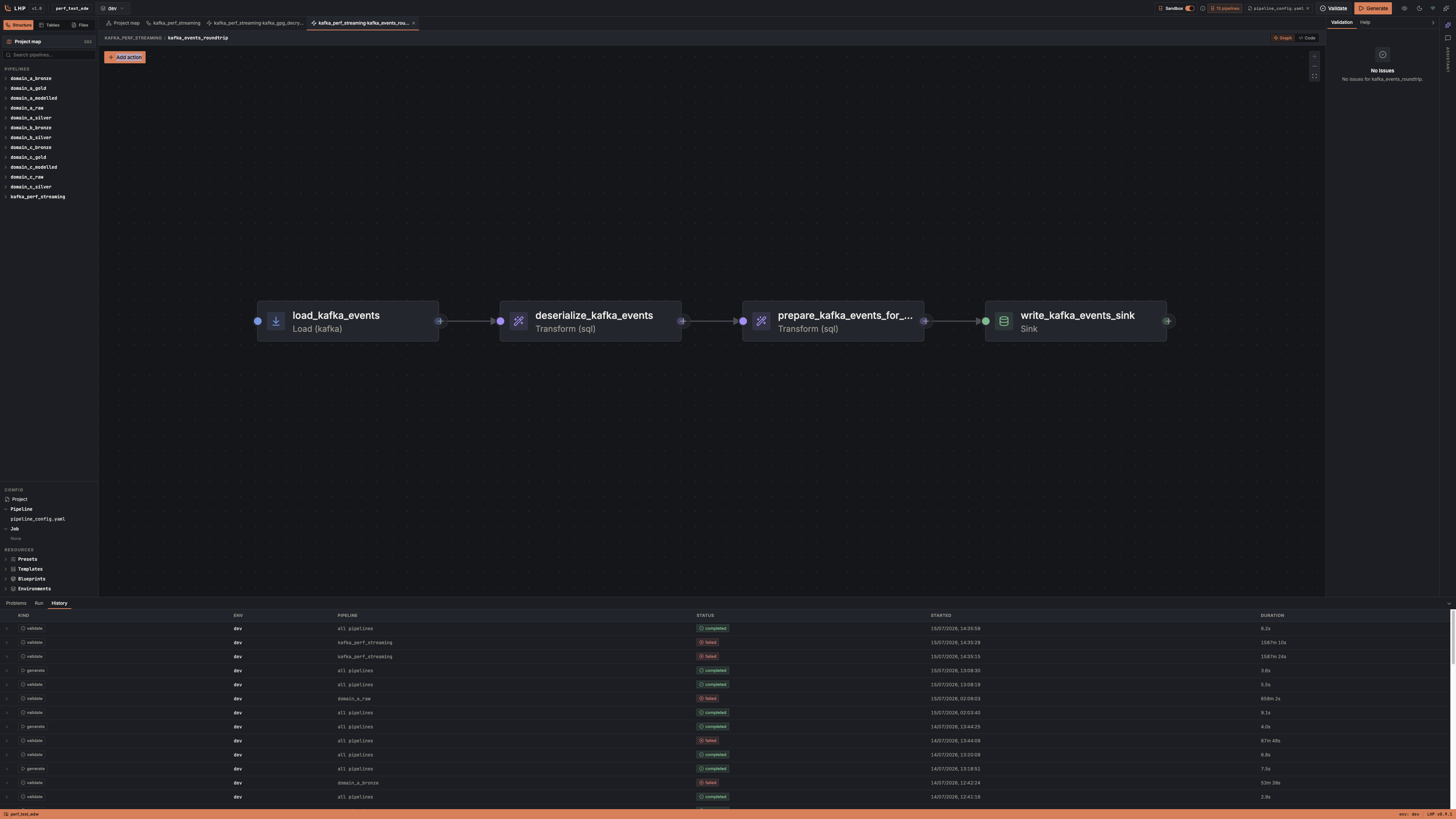
A flowgroup as its load → transform → write action chain.
Click any action to edit it in a form. Every field for that action type is laid out — source settings, options, target, operational metadata — and the IDE writes the YAML for you:
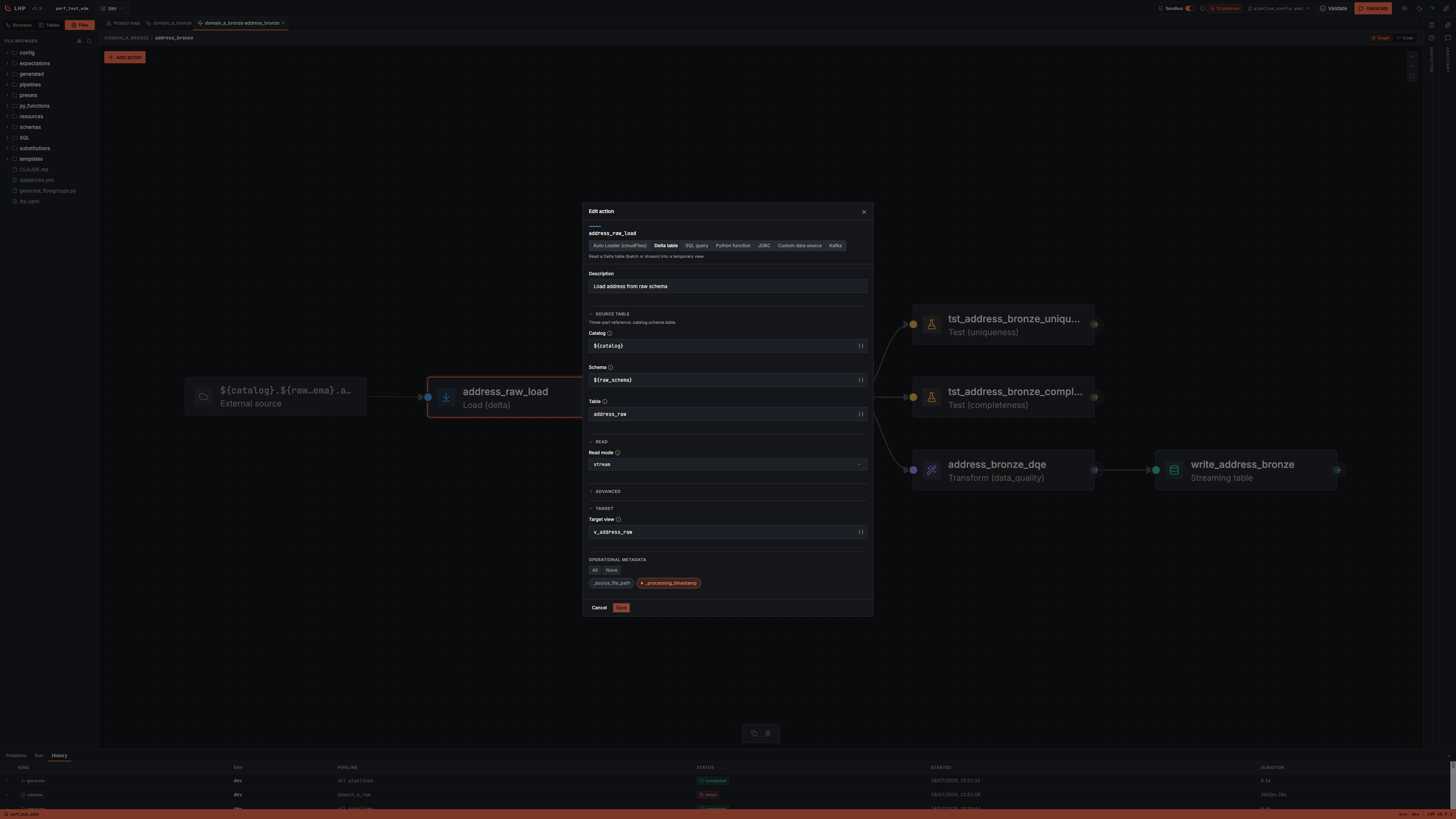
The action editor: fill the fields, and the IDE writes the YAML.
Then generate from the browser — pick an environment, start a run, and watch the output stream, exactly as the CLI does it.
What you just saw
The web IDE is the same generator you ran from the terminal, wrapped in a visual workbench: a project graph, form-based action editing, and live runs. Some people author entirely in it; others dip in to see the shape of a project. Either way, the YAML and generated code are identical to what the CLI produces.
Next
That’s the whole tour — the sample project, read, generated, deployed, and explored. See where to go from here — Where to next.
See also
The full web IDE guide covers launch flags, the assistant panel, and the empty-directory init wizard: Develop in the local web IDE.